
$ 30.00
Give your students a fun, organized, and meaningful way to learn Computer Applications and Computer Literacy while giving them purposeful opportunities to step away from their screens!
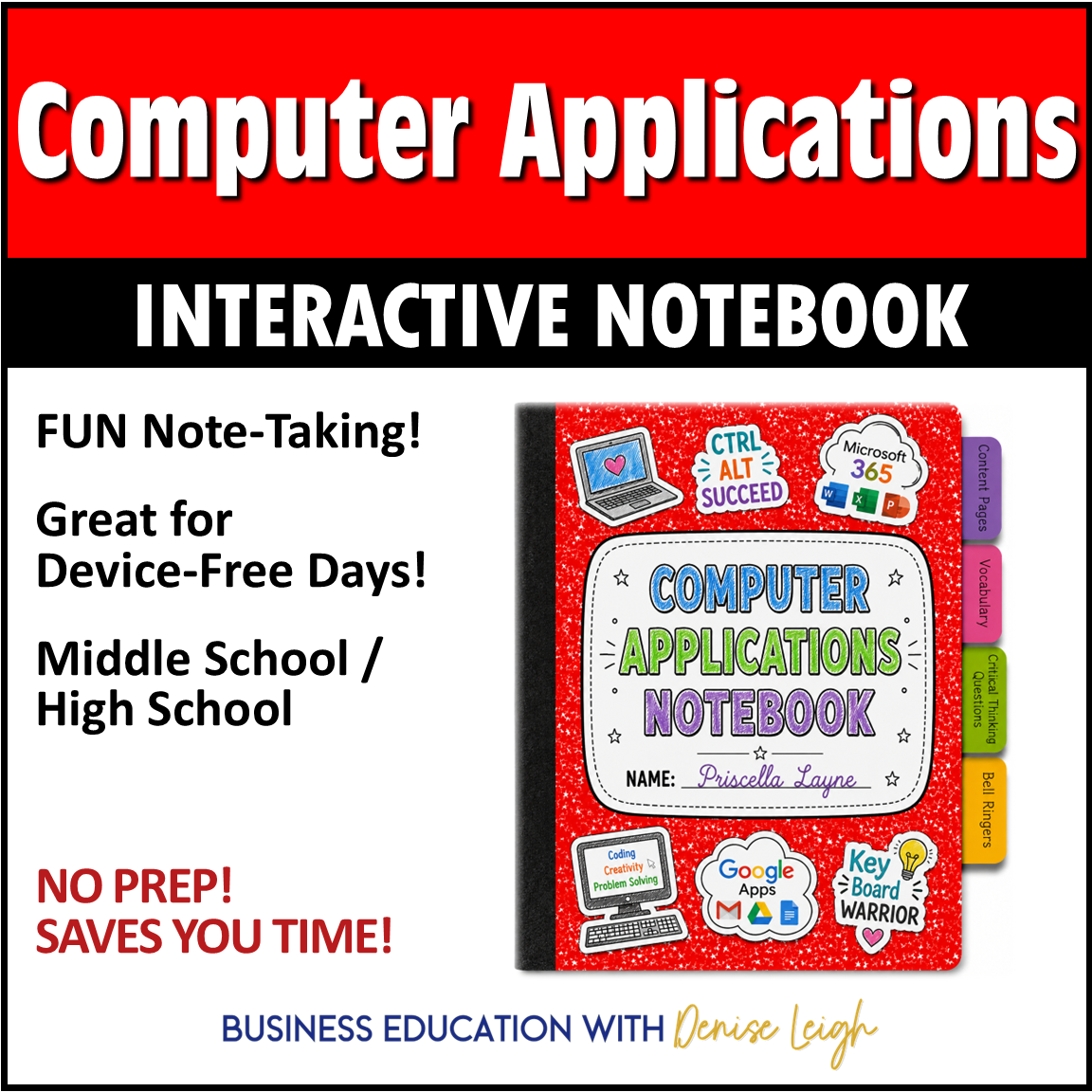
My Computer Applications Interactive Notebook helps students actively engage with essential technology concepts through structured note-taking, vocabulary development, critical-thinking questions, reflection, and real-world applications.
The notebook includes 38 printable pages, a completed Teacher Edition with answers, teacher instructions, grading suggestions, vocabulary activities, critical-thinking questions, and bell ringers.
✅ Perfect for 6th, 7th, 8th, 9th, 10th, 11th, and 12th grades (Middle School thru High School alike)

Computer Applications Interactive Notebook | Computer Literacy Guided Notes, Vocabulary, Bell Ringer Activities
Give your students a fun, organized, and meaningful way to learn Computer Applications and Computer Literacy while giving them purposeful opportunities to step away from their screens!
My Computer Applications Interactive Notebook helps students actively engage with essential technology concepts through structured note-taking, vocabulary development, critical-thinking questions, reflection, and real-world applications.
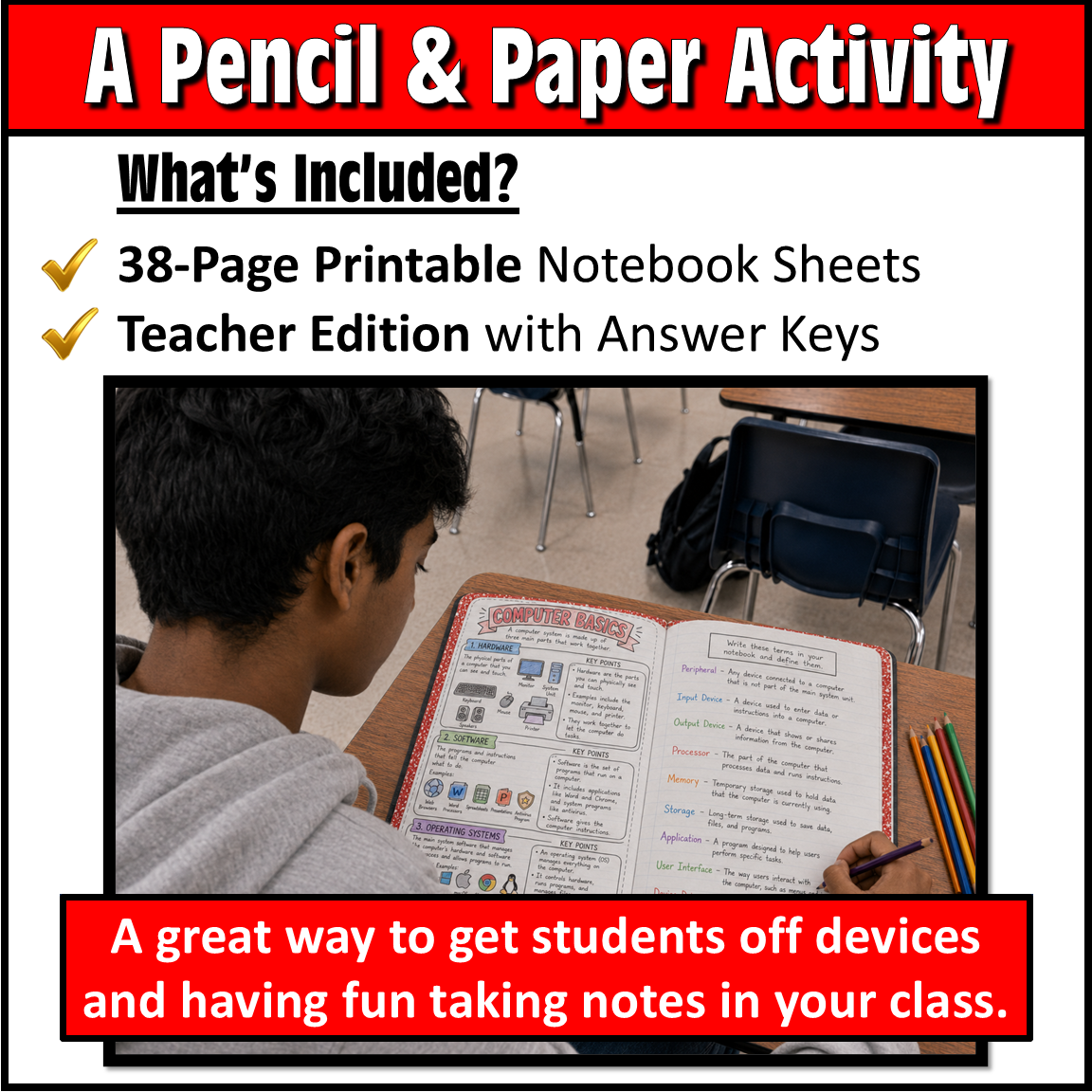
Instead of simply watching demonstrations or completing every lesson on a computer, students create a personalized Computer Applications reference notebook they can use throughout the course as both a study guide and classroom resource.
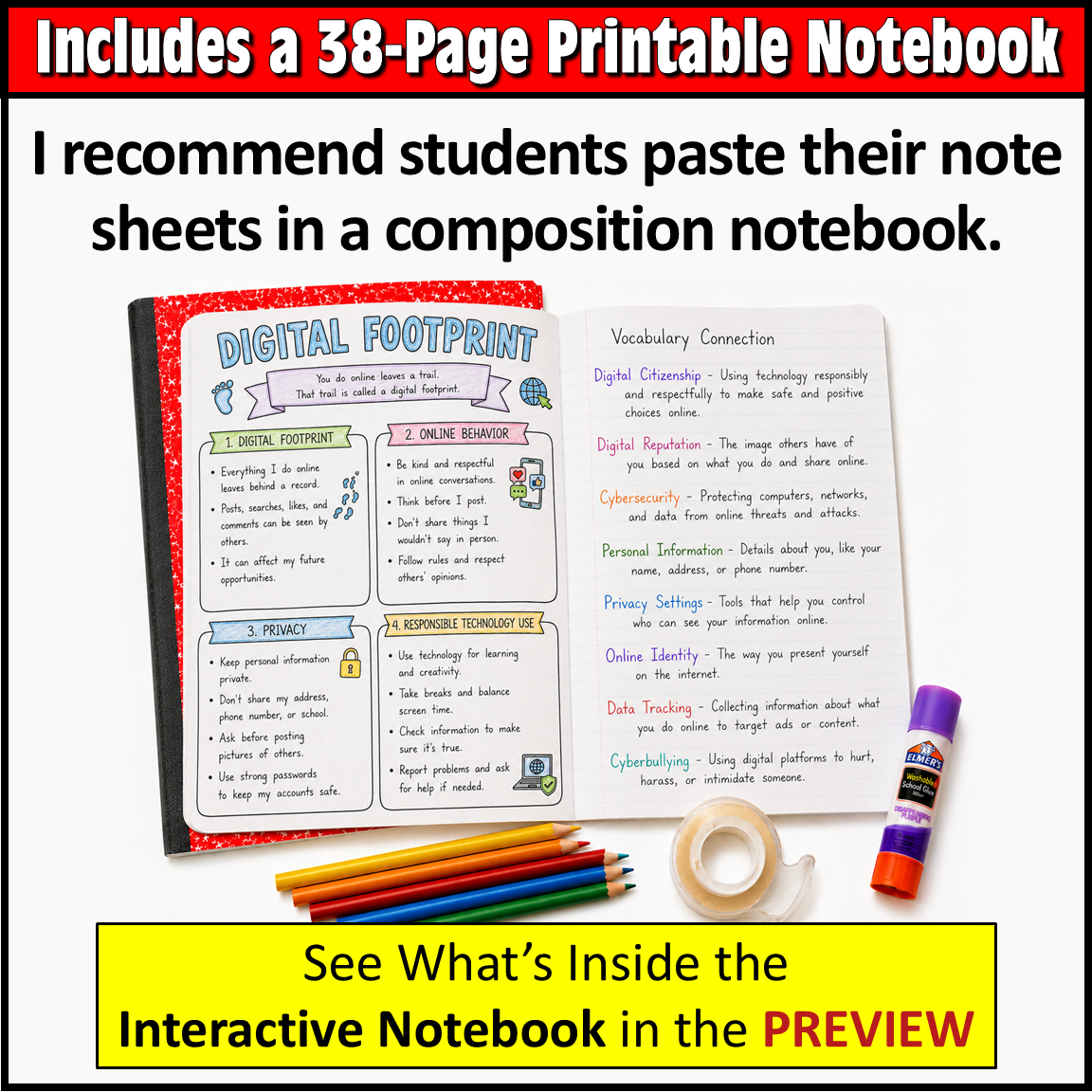
Students can color the pages, tape or glue them into a composition notebook, record vocabulary definitions, and respond to open-ended questions that require them to apply what they have learned about computers, digital citizenship, cybersecurity, productivity software, cloud computing, file management, artificial intelligence, research, and more.
The notebook includes 38 printable pages, a completed Teacher Edition with answers, teacher instructions, grading suggestions, vocabulary activities, critical-thinking questions, and bell ringers.
✅ Perfect for 6th, 7th, 8th, 9th, 10th, 11th, and 12th grades (Middle School thru High School alike)
Why Teachers Will ❤️ This Interactive Notebook
✔️ Ready-to-Use and Easy to Implement
✔️ 38-page printable Computer Applications notebook
✔️ Gives students a structured way to organize technology concepts
✔️ Perfect supplement for a Computer Literacy class
✔️ Provides a meaningful technology-free learning option
✔️ Great for device-free days
✔️ Encourages writing, reflection, and active note-taking
✔️ Reinforces essential Computer Applications and technology vocabulary
✔️ Covers both Google Workspace and Microsoft 365
✔️ Includes critical-thinking questions for major topics
✔️ Includes a robust collection of bell-ringer / exit-ticket questions
✔️ Works as guided notes, independent practice, homework, review, or formative assessment
✔️ Creates a student-made technology reference guide
✔️ Includes a completed Teacher Edition
✔️ Includes teacher instructions and grading suggestions
✔️ Great for in-person learning, homeschool, review days, and substitute plans
✔️ Perfect for new(er) Computer Applications teachers, veteran teachers, and multiple-prep teachers
What’s Included❓
✔️ 38-Page Printable Computer Applications Interactive Student Notebook
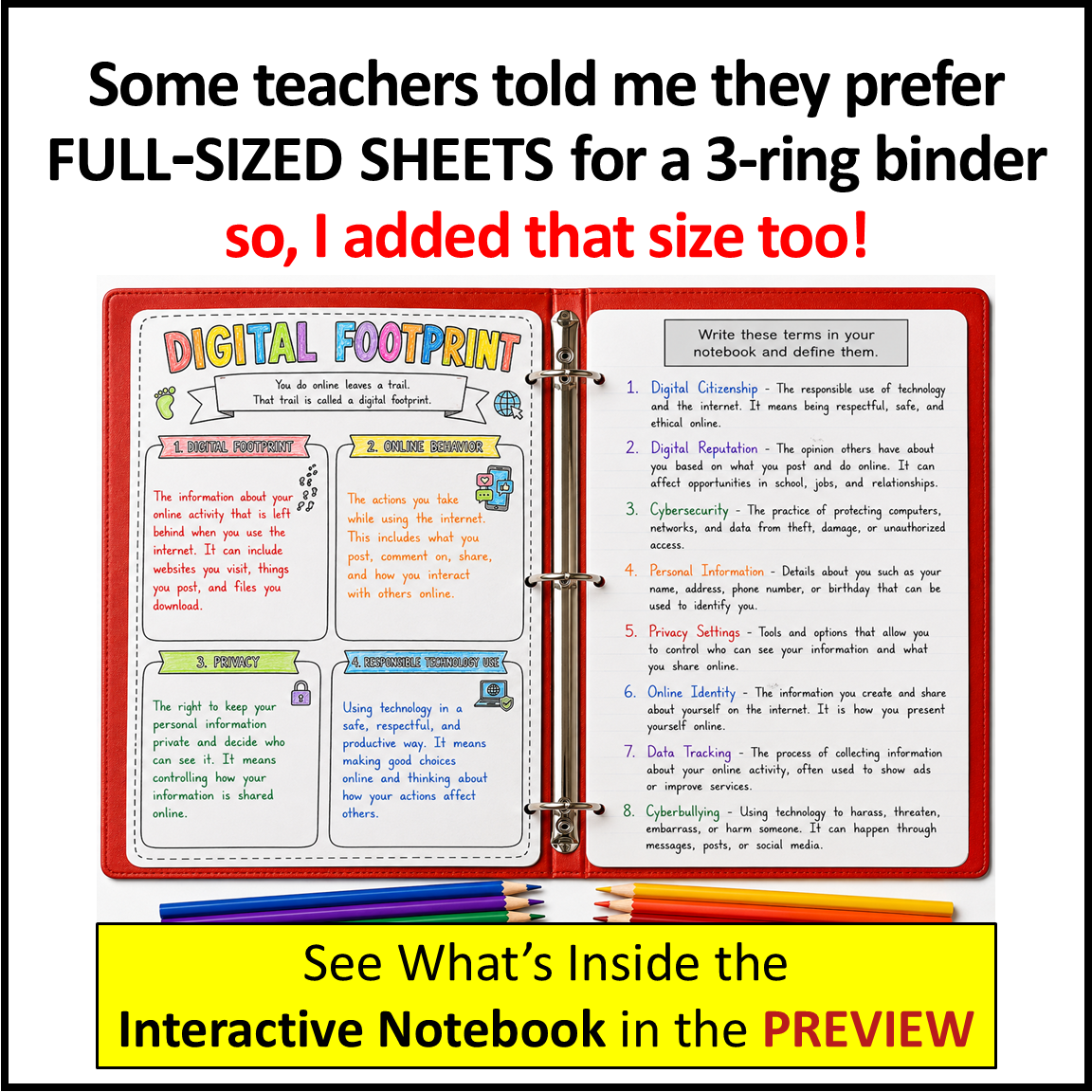
✔️ Two page-size options for classroom flexibility (composition notebook and full-size 8.5″ x11″)
✔️ Completed Teacher Edition with answers for the content pages
✔️ Teacher Instructions
✔️ Grading Suggestions
✔️ Illustrated Computer Applications content pages
✔️ Vocabulary Connection activities
✔️ Critical-thinking and real-world application questions
✔️ Bell-ringer / exit-ticket questions
✔️ Printable PDF files
✔️ Composition notebook and 3-ring binder are NOT included.
The resource includes pages designed for a traditional interactive notebook as well as full-size 8.5″ × 11″ sheets for teachers who prefer students to keep their work in a 3-ring binder.
🎯 How the Interactive Notebook Works
Each major topic follows a consistent format that helps students build an organized technology reference notebook.
1. Content Page
Students complete an illustrated content page that organizes and summarizes the major concepts. The pages are designed so teachers can project the completed Teacher Edition while students fill in their own notes. Students may color the pages and attach them to a composition notebook using tape or a glue stick.
2. Vocabulary Connection
Students record and define important technology vocabulary associated with each topic.
The notebook builds a substantial working vocabulary covering everything from digital citizenship and cybersecurity to cloud storage, spreadsheet formulas, collaboration tools, and AI applications. For example, the cybersecurity vocabulary includes authentication, encryption, firewalls, data breaches, ransomware, spyware, password managers, two-factor authentication, and social engineering.
3. Critical-Thinking Questions
Students apply what they have learned through open-ended questions, comparisons, scenarios, and real-world technology situations.
For example, students are asked to evaluate online behavior, cybersecurity choices, cloud-storage decisions, spreadsheet formulas, and the advantages of different productivity platforms.
4. Bell Ringers / Exit Tickets
A large collection of ready-to-use questions is included for daily review.
Teachers can write a question on the board and have students answer directly in their notebooks, making these perfect for:
✔️ Bell Ringers
✔️ Exit Tickets
✔️ Warm-Ups
✔️ Quick Reviews
✔️ Formative Assessment
✔️ Discussion Starters
These Pages Work Well As:
✔️ Guided Notes
✔️ Independent Work
✔️ Bell Ringers
✔️ Exit Tickets
✔️ Homework
✔️ Formative Assessments
✔️ Review activities
✔️ Partner Discussions
✔️ Substitute-Day Activities
✔️ Device-Free Learning activities
💻 Computer Applications / Computer Literacy Topics Covered
💯 What Class Is This For?
🧩 Student Activity Highlights
✔️ Identify computer hardware, software, and operating systems
✔️ Analyze the impact of a digital footprint
✔️ Practice responsible online behavior
✔️ Evaluate cybersecurity threats
✔️ Identify phishing, scams, malware, and suspicious links
✔️ Examine copyright, plagiarism, fair use, and Creative Commons
✔️ Organize files and folders effectively
✔️ Interpret common file extensions
✔️ Compare uploading and downloading
✔️ Compare Google Drive and OneDrive
✔️ Examine cloud-storage advantages and risks
✔️ Compare Google Workspace and Microsoft 365
✔️ Practice spreadsheet formulas and functions
✔️ Evaluate collaboration and file-sharing tools
✔️ Explore Microsoft Copilot and Google Gemini
✔️ Apply technology concepts through critical-thinking scenarios
✔️ Build a personalized Computer Applications study guide
📥 File Type: Printable Google Slides files (or convert to pdf or PowerPoint).
Students may use the pages in:
✔️ A composition notebook
OR
✔️ A 3-ring binder using the included full-size sheets
It is not an editable digital notebook.
⭐Perfect for Device-Free Days⭐
Computer Applications classes naturally involve a lot of screen time.
That is exactly why this resource works so well. It gives students a meaningful way to step away from their computers while still learning Computer Literacy and technology concepts.
Students write, define, analyze, compare, explain, and reflect instead of simply clicking through another digital assignment. The result is a physical reference notebook students can return to throughout the course.
🎯 This Computer Applications Interactive Notebook gives students a creative and structured way to interact with technology content while building:
✔️ Computer Literacy
✔️ Digital Citizenship
✔️ Cybersecurity Awareness
✔️ Technology Vocabulary
✔️ File-management skills
✔️ Cloud-Computing Knowledge
✔️ Productivity Software Knowledge
✔️ Spreadsheet Literacy
✔️ Information Literacy
✔️ AI Awareness
✔️ Critical-Thinking Skills
✔️ Responsible Technology Habits
By the end of the notebook, students will have created a personalized Computer Applications reference guide they can use to review concepts, prepare for assessments, and connect classroom technology instruction to school, careers, and everyday digital life.
⭐My Computer Applications Interactive Notebook will make an excellent companion to my Computer Literacy & Technology Unit, Microsoft Office 365 Course and Google Applications Course.⭐
Only logged in customers who have purchased this product may leave a review.

Reviews
There are no reviews yet.